
Channel Watching
Channel Watching alerts fire whenever ChannelWatch detects that someone started watching a live TV channel on your Channels DVR. The notification can include as much or as little detail as you want.
What triggers the alert
Section titled “What triggers the alert”ChannelWatch monitors the Channels DVR activity stream for activities.set events that contain "Watching ch" in the event value. Each unique combination of channel and device is tracked as a session. A notification fires when:
- A device starts watching a channel it was not already watching, or
- A device switches to a different channel (the old session ends, a new one begins)
The alert does not fire repeatedly while the same device stays on the same channel. Once a session is active, ChannelWatch waits for a channel change or session end before sending another notification for that device.
Options
Section titled “Options”Configure these in the web UI under Settings > Alerts > Channel Watching.
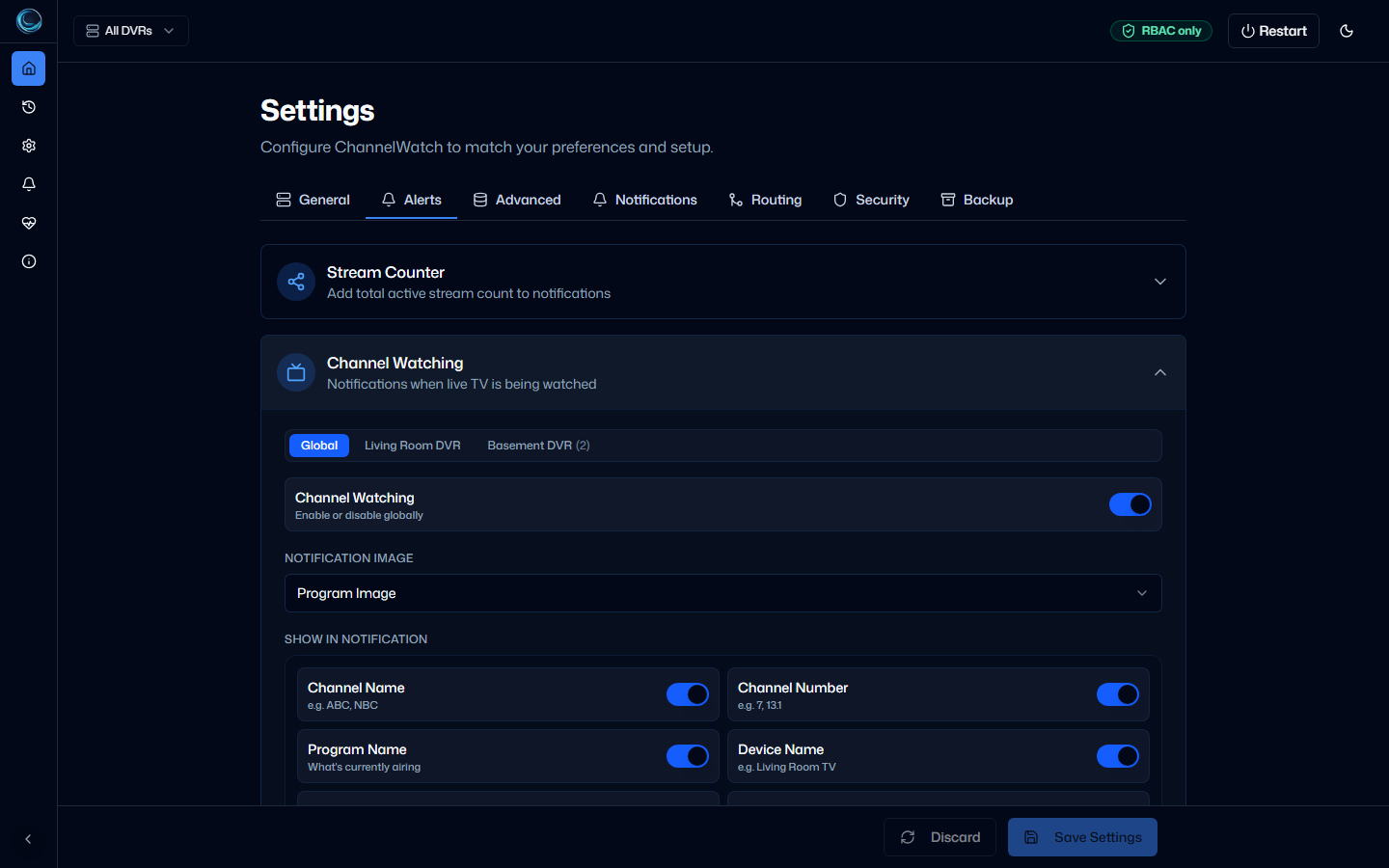
| Option | Description |
|---|---|
| Image Source | Which image to attach to the notification: Channel Logo (the channel’s broadcast logo) or Program Image (the current program’s artwork). If the preferred source has no image, ChannelWatch falls back to the other automatically. |
| Show Channel Name | Include the channel’s name (e.g. ABC) in the notification body. |
| Show Channel Number | Include the channel number (e.g. 7 or 13.1) in the notification body. |
| Show Program Name | Include the title of the program currently airing on that channel. Requires a successful lookup against the Channels DVR guide data. |
| Show Device Name | Include the name of the device or client that started watching. |
| Show Device IP | Include the IP address of the device. |
| Show Stream Source | Include the stream source identifier (e.g. HDHR for a HDHomeRun tuner). |
| Stream Count | Include the current active-stream total in the alert payload and internal log output. |
All options are enabled by default. Disable any you don’t need to keep notifications concise.
Sample notification
Section titled “Sample notification”With all options enabled and metadata available, a Channel Watching alert uses this default title and body:
Title: Channels DVR - Watching TV
📺 ABCChannel: 7Program: Good Morning AmericaDevice: Living RoomDevice IP: 192.168.1.101Source: HDHRTotal Streams: 2
The body lines appear in the order shown above, and any disabled or unavailable option is omitted.
Image source behavior
Section titled “Image source behavior”When Image Source is set to Channel Logo, ChannelWatch uses the channel’s logo from your Channels DVR server. If no logo is available, it falls back to the current program’s artwork. When set to Program Image, the order reverses: program artwork first, channel logo as fallback. If neither is available, the notification is sent without an image.
Edge cases
Section titled “Edge cases”Subchannel numbers. Channels DVR reports subchannels as decimal numbers (13.1, 7.2). ChannelWatch preserves the full decimal in the notification so you can distinguish between subchannels of the same broadcast network.
Unknown device. If the event does not include a recognizable device name, ChannelWatch falls back to the device’s IP address as the identifier. If neither is available, the session is still tracked but the device field shows Unknown device.
Program name unavailable. Guide data lookups can fail if Channels DVR has not yet populated the EPG for a channel. When that happens, the program name line is omitted from the notification rather than showing a placeholder.
Stream count. See Stream Counting below. When enabled, the current count is passed into the alert formatter and appears as Total Streams in the notification.
Stream Counting
Section titled “Stream Counting”Stream Counting is a sub-feature of Channel Watching, not a separate alert module. It is controlled by the shared Stream Count toggle in the Channel Watching settings (stream_count).
When enabled, the active-stream total is included in the alert data and internal logs each time a Channel Watching event fires. The notification formatter adds a Total Streams line when the count is available.
A few things to know:
- Disabling the toggle removes stream-count tracking and the
Total Streamsnotification line. - The toggle does not decide whether Channel Watching alerts fire.
- Stream Counting does not generate its own notifications and has no separate alert type.
Testing
Section titled “Testing”Open Diagnostics, find Tests > Notifications, then run Test Channel Watching Alert. The test notification uses the same format as a real alert and is delivered through your configured notification providers.
From the command line:
docker exec -it channelwatch python -m core.main --test-alert ALERT_CHANNEL_WATCHINGRelated pages
Section titled “Related pages”- VOD Watching - alerts for recorded content and DVR library playback
- Notification Examples - full gallery of sample notification formats
- Notification Providers - configure where alerts are delivered