
Per-DVR Notification Routing
By default, every alert from every DVR goes to every notification channel you have configured. Per-DVR notification routing lets you change that. You can send alerts from your living room DVR to Pushover, alerts from your basement DVR to a Discord channel, and skip notifications entirely for a test server - all from a single configuration screen.
The routing matrix
Section titled “The routing matrix”Go to Settings > Routing to open the routing matrix. The matrix is a grid where:
- Rows are your DVR servers
- Columns are event types (Channel Watching, VOD Watching, Recording Events, Disk Space, DVR Health)
- Cells contain checkboxes for each notification channel you have configured
Each cell lets you choose which notification channels receive that event type from that DVR. You can enable any combination - one channel, multiple channels, or none.
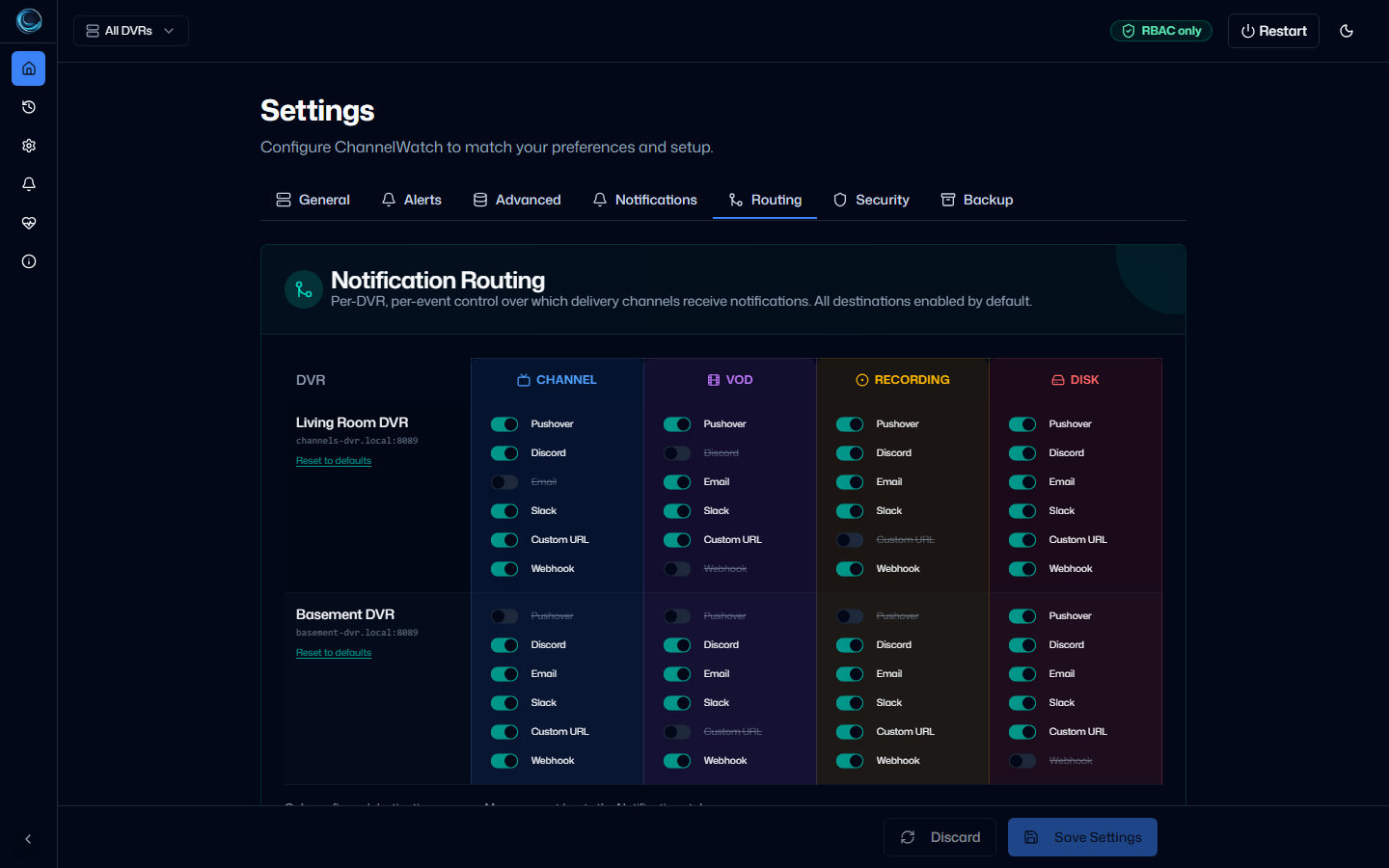
Example layout
Section titled “Example layout”| DVR server | Channel Watching | VOD Watching | Recording Events | Disk Space | DVR Health |
|---|---|---|---|---|---|
| Living Room | Pushover, Discord | Pushover | Pushover | Pushover | Pushover |
| Basement | Discord | (none) | Discord | Discord | Discord |
| Test Server | (none) | (none) | (none) | (none) | (none) |
In this example, the test server generates no notifications at all, the basement DVR skips VOD alerts, and the living room DVR sends channel watching alerts to both Pushover and Discord.
Default behavior
Section titled “Default behavior”When you add a new DVR server, all event types are enabled for all configured notification channels. This preserves the behavior from v0.7 where all alerts went to all channels. You only need to open the routing matrix if you want to change the defaults.
When no explicit route exists, newly configured notification channels receive every event type. If you have saved an explicit route for an event, a new destination stays disabled for that event until you select it in the matrix. Existing destination choices are not affected.
Saving routing rules
Section titled “Saving routing rules”Clicking Save in the routing matrix writes the routing configuration to settings.json as a notification_routing JSON object. The structure maps each DVR ID to the event keys channel, vod, recording, disk, and health. Each event maps destination keys to boolean values:
{ "notification_routing": { "a3f2c1b4": { "channel": { "pushover": true, "discord": true }, "vod": { "pushover": true, "discord": false }, "recording": { "pushover": true, "discord": false }, "disk": { "pushover": true, "discord": false }, "health": { "pushover": true, "discord": false } }, "b7e9d2a1": { "channel": { "pushover": false, "discord": true }, "vod": { "pushover": false, "discord": false }, "recording": { "pushover": false, "discord": true }, "disk": { "pushover": false, "discord": true }, "health": { "pushover": false, "discord": true } } }}Saved routes normally include every configured destination. If an older explicit event map omits a destination, ChannelWatch treats that destination as disabled.
The DVR IDs in the routing matrix match the canonical IDs computed as md5(host:port)[:8]. If you change a DVR’s host or port, its routing rules are not automatically migrated to the new ID. The old rules stay attached to the old ID and stop applying to the edited server, so you will need to reconfigure routing for the new server entry. See Editing a server for the full consequence of an ID change.
What routing controls and what it does not
Section titled “What routing controls and what it does not”The routing matrix controls which event types from which DVRs reach which provider types. Alerts are scoped per DVR.
Provider destinations are configured once per runtime and remain global. Every DVR that routes to Pushover sends to the same Pushover account. Every DVR that routes to Discord uses the same Discord webhook for that ChannelWatch instance. You cannot send DVR-A alerts to one Pushover account and DVR-B alerts to a different Pushover account within a single ChannelWatch instance.
If you need strict per-DVR provider isolation, run a separate ChannelWatch instance for each DVR with its own provider credentials.
Hot reload
Section titled “Hot reload”Routing matrix changes take effect immediately after saving. No container restart is required. The notification dispatcher reads the updated routing rules from settings.json on the next alert.
Per-DVR alert pausing
Section titled “Per-DVR alert pausing”Disabling a DVR server in Settings > General > DVR Servers pauses all monitoring for that server, which also stops all notifications from it. This is a coarser control than the routing matrix. Use it when you want to temporarily silence a server entirely rather than routing its alerts selectively.
Troubleshooting
Section titled “Troubleshooting”An alert fired but I didn’t receive a notification
Check the routing matrix for the DVR that triggered the alert. If the cell for that event type is empty (no channels checked), no notification is sent. This is expected behavior, not a bug.
I’m receiving alerts from a server I thought I silenced
Open the routing matrix and verify the server’s row. If any cells still have channels checked, those combinations will still send notifications. Uncheck all channels in every cell for that server to silence it completely, or disable the server in Settings > General > DVR Servers to pause monitoring entirely.
Routing rules disappeared after changing a DVR’s host or port
Changing a DVR’s host or port creates a new server entry with a new ID. The old routing rules stay keyed to the old ID, so they are no longer active for the edited server. Reconfigure routing for the new server entry in the routing matrix, and see Adding DVR Servers for the matching ID-change warning.
Next steps
Section titled “Next steps”- Multi-DVR Overview - understand DVR identity and state isolation
- Adding DVR Servers - add and manage DVR server connections
- Notification Delivery Log - see which notifications were sent, retried, or failed