
First-Run Configuration
When you open ChannelWatch for the first time on a fresh install, ChannelWatch guides you through the essential setup in the web UI. This page covers that first-run flow and the core settings you’ll configure.
Opening the web UI
Section titled “Opening the web UI”After starting the container, open a browser and navigate to:
http://your-server-ip:8501Replace your-server-ip with the IP address or hostname of the machine running ChannelWatch. If you’re running it locally, use http://localhost:8501.
First-run setup
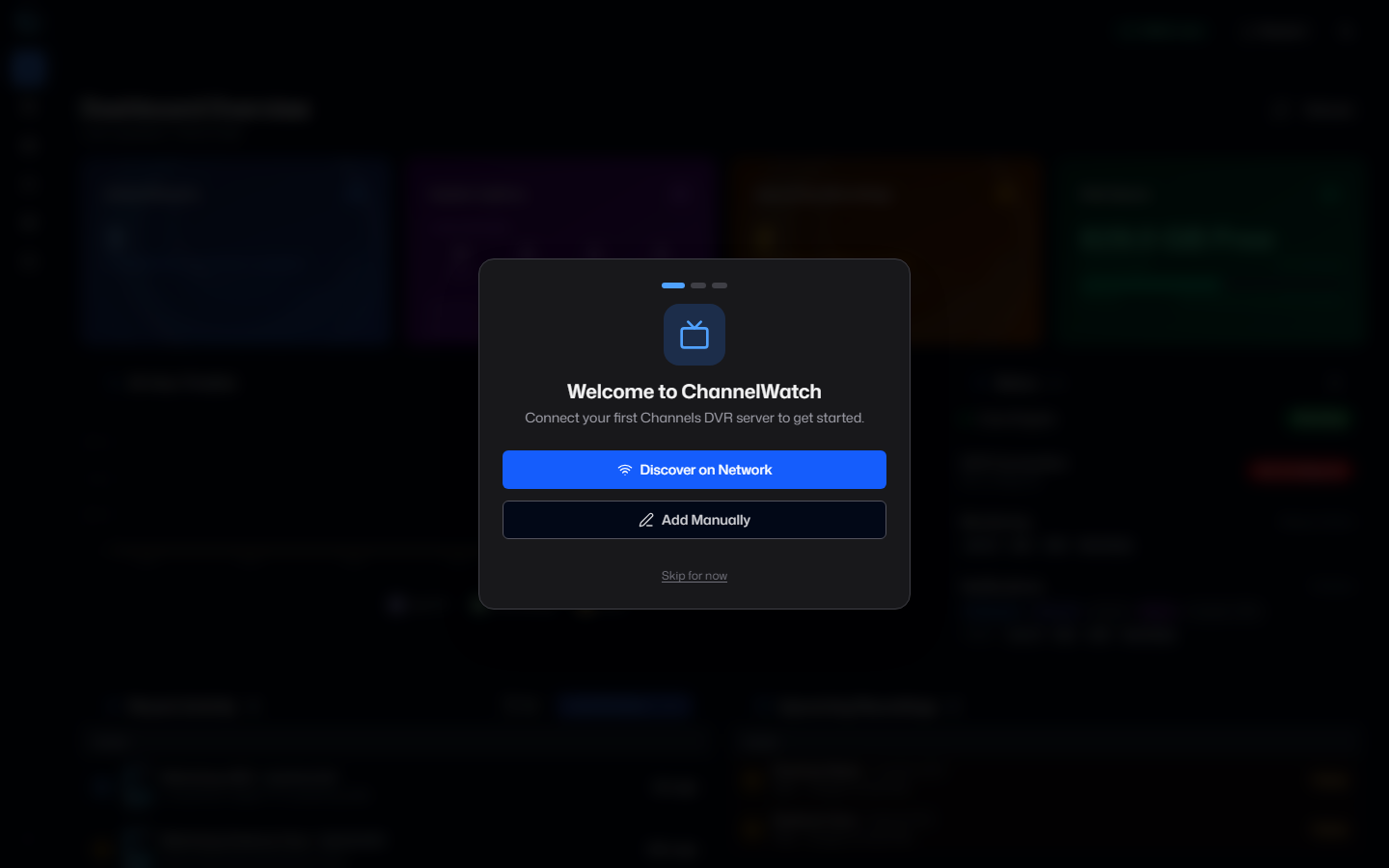
Section titled “First-run setup”On a fresh install with no existing configuration, ChannelWatch opens a guided first-run flow before the main dashboard. In v1.5.3, you first choose secure login or trusted-network no-auth. ChannelWatch then starts DVR discovery or manual entry, validates the connection, and saves at least one Channels DVR server before monitoring begins.
Step 1: Choose how to protect the app
Section titled “Step 1: Choose how to protect the app”Choose Secure login to create the first local administrator account and require a session for the browser UI. Choose trusted-network no-auth only when every client that can reach ChannelWatch is trusted. CW_DISABLE_AUTH is a temporary recovery override, not the normal way to configure a fresh install.
Step 2: Add your first Channels DVR server
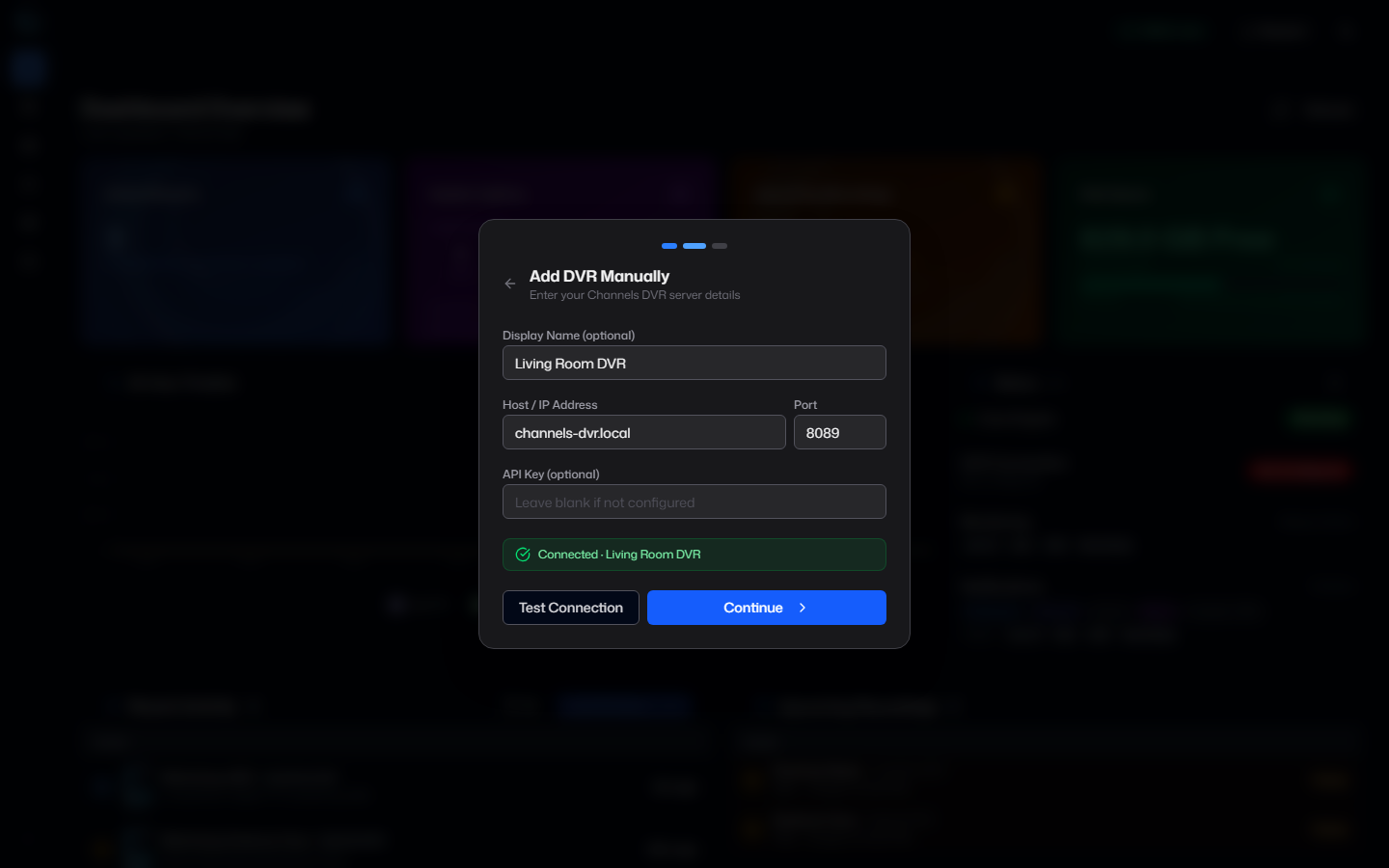
Section titled “Step 2: Add your first Channels DVR server”Enter the connection details for your Channels DVR server:
| Field | Description |
|---|---|
| Host | IP address or hostname of your Channels DVR server (e.g. 192.168.1.100) |
| Port | Channels DVR API port (default: 8089) |
| Display Name | A friendly label shown in the dashboard (e.g. Living Room DVR) |
| API Key | Optional. Required only if your Channels DVR server has API authentication enabled. |
Click Test Connection to verify ChannelWatch can reach the server before saving.
Step 3: Timezone and system settings
Section titled “Step 3: Timezone and system settings”| Setting | Description |
|---|---|
| Timezone | Your local timezone in IANA format (e.g. America/New_York). Used for timestamps in notifications and logs. |
| Log Level | Standard (default) logs connection events and alerts. Verbose adds detailed event processing output, useful for troubleshooting. |
| Log Retention | How many days of logs to keep before automatic cleanup. |
Step 4: Review and save
Section titled “Step 4: Review and save”The wizard shows a summary of your settings. Click Save and Launch to write the configuration and start monitoring.
ChannelWatch then connects to your Channels DVR server and begins watching the event stream. The main dashboard appears once the initial setup is complete.
Core settings reference
Section titled “Core settings reference”After the wizard, all settings are available under the Settings tab. The core DVR settings are:
| Setting | Description |
|---|---|
| DVR server list | One row per configured Channels DVR server |
| Host and port | Server IP or hostname plus API port, defaulting to 8089 |
| API key | Optional per-DVR key, encrypted with the managed /config/encryption.key |
| Enabled | Whether ChannelWatch should actively monitor that DVR |
| Timezone | Local timezone for timestamps |
| Log Level | Standard or Verbose logging |
| Log Retention | Auto-cleanup period in days |
Alert configuration
Section titled “Alert configuration”ChannelWatch monitors five main alert types. Fresh installs use the Important Only preset: Disk Space, Recording Events, and DVR Health are enabled, while Channel Watching and VOD Watching are disabled. Recording outcome alerts focus on cancelled, failed, skipped, missed, and interrupted jobs; scheduled, started, and completed alerts are disabled. You can change the preset or individual toggles under Settings > Alerts.
| Alert type | What it monitors |
|---|---|
| Channel Watching | Live TV viewing sessions |
| VOD Watching | Recorded content and library playback |
| Recording Events | Recording lifecycle and outcomes (scheduled, started, completed, cancelled, stopped, failed, skipped, missed, interrupted) |
| Disk Space | Free space on the DVR storage path |
| DVR Health | DVR connection outages and recoveries |
Each alert type has its own options page with toggles for what information to include in notifications (channel name, device name, program details, etc.).
Stream counting is part of Channel Watching configuration, not a separate alert type.
Notification providers
Section titled “Notification providers”ChannelWatch sends notifications through one or more providers. Configure them under Settings > Notifications. At least one provider must be configured for alerts to be delivered.
Supported providers are Pushover plus Apprise-backed destinations for Discord, Telegram, Slack, Email (SMTP), Gotify, Matrix, and any Apprise-compatible URL.
See the Notification Providers section for per-provider setup guides.
Verifying your setup
Section titled “Verifying your setup”Use the Diagnostics tab to confirm everything is working:
- System Information shows the current environment, storage, core status, configured providers, and DVR connection details.
- Diagnostic Tests > Connectivity checks the Channels DVR connection and API endpoints.
- Diagnostic Tests > Notifications sends a test notification for each alert type so you can confirm delivery end-to-end.
Configuration storage
Section titled “Configuration storage”All settings are stored in /config/settings.json inside the container. You do not need to edit this file directly.
If you need to back up your configuration, copy the entire /config directory. The backup includes settings.json, the SQLite activity database, and any related runtime files. Keep /config/encryption.key with the backup: ChannelWatch uses it to encrypt stored per-DVR API keys and custom webhook URL/secret fields.
Next steps
Section titled “Next steps”- Multi-DVR Setup - add more Channels DVR servers
- Channel Watching Alerts - configure live TV alert options
- Notification Providers - set up push notifications
- Troubleshooting - fix common setup issues