
Adding DVR Servers
ChannelWatch manages DVR server connections through the web UI. You can add, edit, enable, disable, and remove servers at any time without restarting the container.
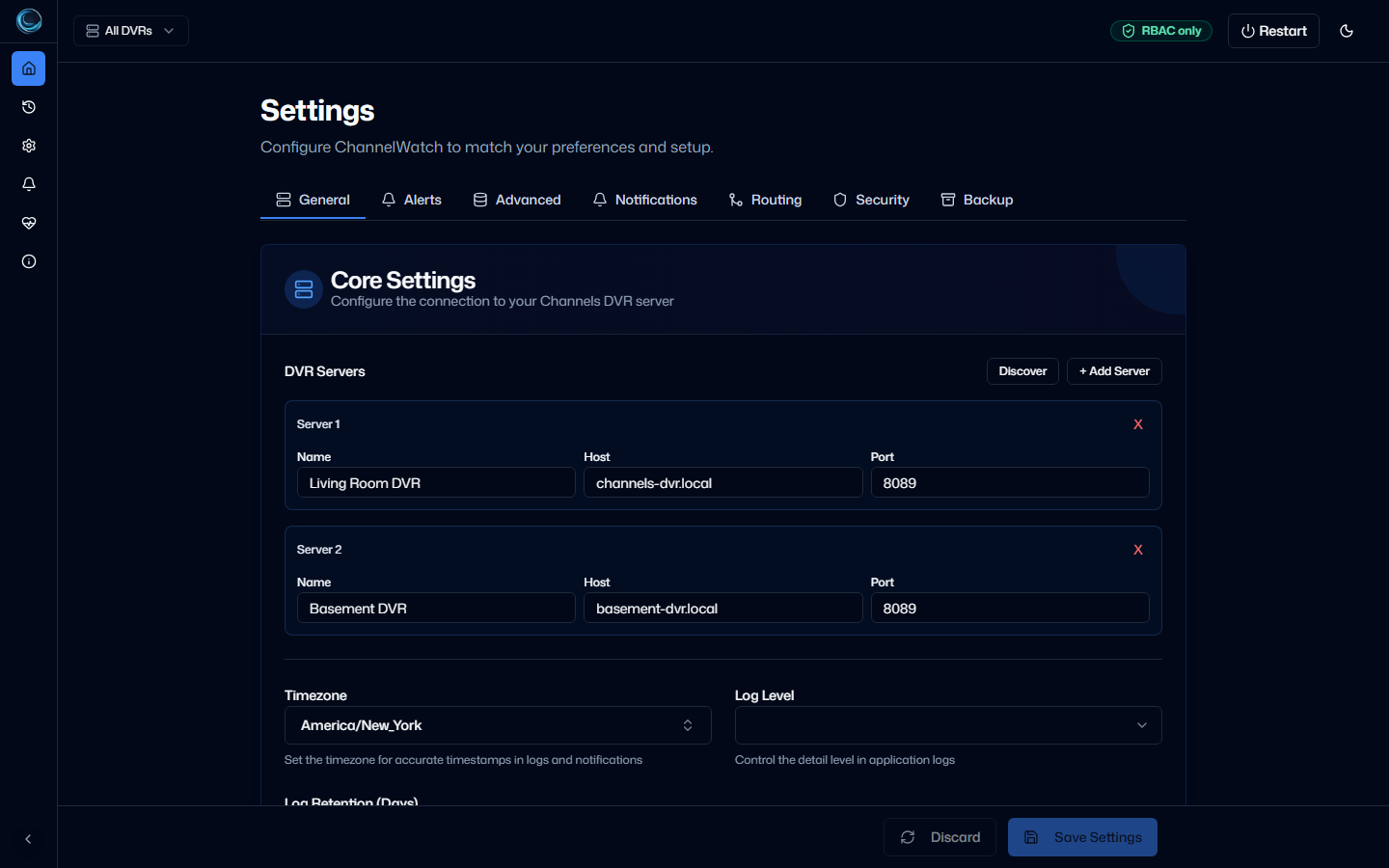
Adding a server
Section titled “Adding a server”- Open the ChannelWatch web UI at
http://your-server-ip:8501 - Go to Settings > General > DVR Servers
- Click Add Server
- Fill in the server details:
| Field | Required | Description |
|---|---|---|
| Display name | No | A friendly label shown in notifications and the dashboard (e.g. Living Room, Basement) |
| Host | Yes | IP address or hostname of the machine running Channels DVR |
| Port | Yes | Channels DVR API port (default: 8089) |
| API key | No | Per-DVR API key for authenticated access, if your Channels DVR requires one |
- Click Save
ChannelWatch tests the connection immediately after saving. If the test fails, the server is still saved but shown with a connection error status. You can edit the details and retry without losing the entry.
Per-DVR API keys
Section titled “Per-DVR API keys”If your Channels DVR server requires an API key for access, enter it in the API key field when adding or editing the server. ChannelWatch persists the key as a Fernet-encrypted value in settings.json (guarded by /config/encryption.key) and masks it in the UI so it does not appear in plaintext.
You can rotate a stored API key at any time by editing the server entry and entering the new key. The old key is overwritten immediately.
Enabling and disabling servers
Section titled “Enabling and disabling servers”Each server has an Enabled toggle. Disabling a server pauses monitoring for that server without removing it. The server’s historical activity data is preserved, and you can re-enable it at any time.
Disabled servers do not appear in the dashboard aggregate view and do not generate notifications. They also do not count against the soft limit of 10 active servers.
Editing a server
Section titled “Editing a server”To change a server’s display name, host, port, or API key:
- Go to Settings > General > DVR Servers
- Click the server entry you want to edit
- Update the fields and click Save
Changing the host or port changes the server’s internal ID (computed as md5(host:port)[:8]). This creates a new state record. Historical activity from the old address is not migrated to the new ID. Existing notification routing rules stay keyed to the old ID, so they stop applying to the edited server until you reconfigure routing for the new entry in the matrix. See Per-DVR Notification Routing for details.
Removing a server
Section titled “Removing a server”Clicking Remove on a server entry performs a soft delete. The server is immediately hidden from the UI and ChannelWatch stops connecting to it, but the underlying record is retained internally for 30 days.
During the 30-day window you can recover the server by restoring from a settings.json backup. After 30 days, the record is permanently deleted along with its associated activity history.
Hard delete
Section titled “Hard delete”If you want to permanently remove a server immediately without waiting for the 30-day window, use the Hard Delete button that appears in the server’s edit view. Hard delete is irreversible and removes all associated activity history immediately.
Offline DVR behavior
Section titled “Offline DVR behavior”When a DVR server becomes unreachable, ChannelWatch enters an exponential backoff retry loop for that server. Retry intervals start at 2 seconds and double with each attempt (2s, 4s, 8s, 16s, 32s), then hold at 32 seconds until the server comes back.
While a server is offline:
- Its status shows as Offline in the dashboard
- Notifications for that server are paused
- Other DVR servers continue monitoring normally
- The server’s historical data is preserved
When the server comes back online, ChannelWatch reconnects automatically and resumes monitoring. No manual action is required.
Next steps
Section titled “Next steps”- Environment Bootstrap Config - use
CHANNELS_DVR_SERVERSfor automated DVR bootstrap - mDNS Auto-Discovery - let ChannelWatch find servers on your LAN automatically
- Per-DVR Notification Routing - route different event types to different notification channels per server