
Diagnostics
The ChannelWatch web UI includes a built-in Diagnostics tab that lets you test every part of the system without touching the command line. It’s the fastest way to confirm whether a problem is with your DVR connection, your notification provider, or your alert configuration.
Open the web UI at http://your-server-ip:8501 and click Diagnostics in the sidebar. If you need to send troubleshooting details, use Report a Problem from this same page so ChannelWatch can prepare a sanitized report preview and validate attachments before you share them.
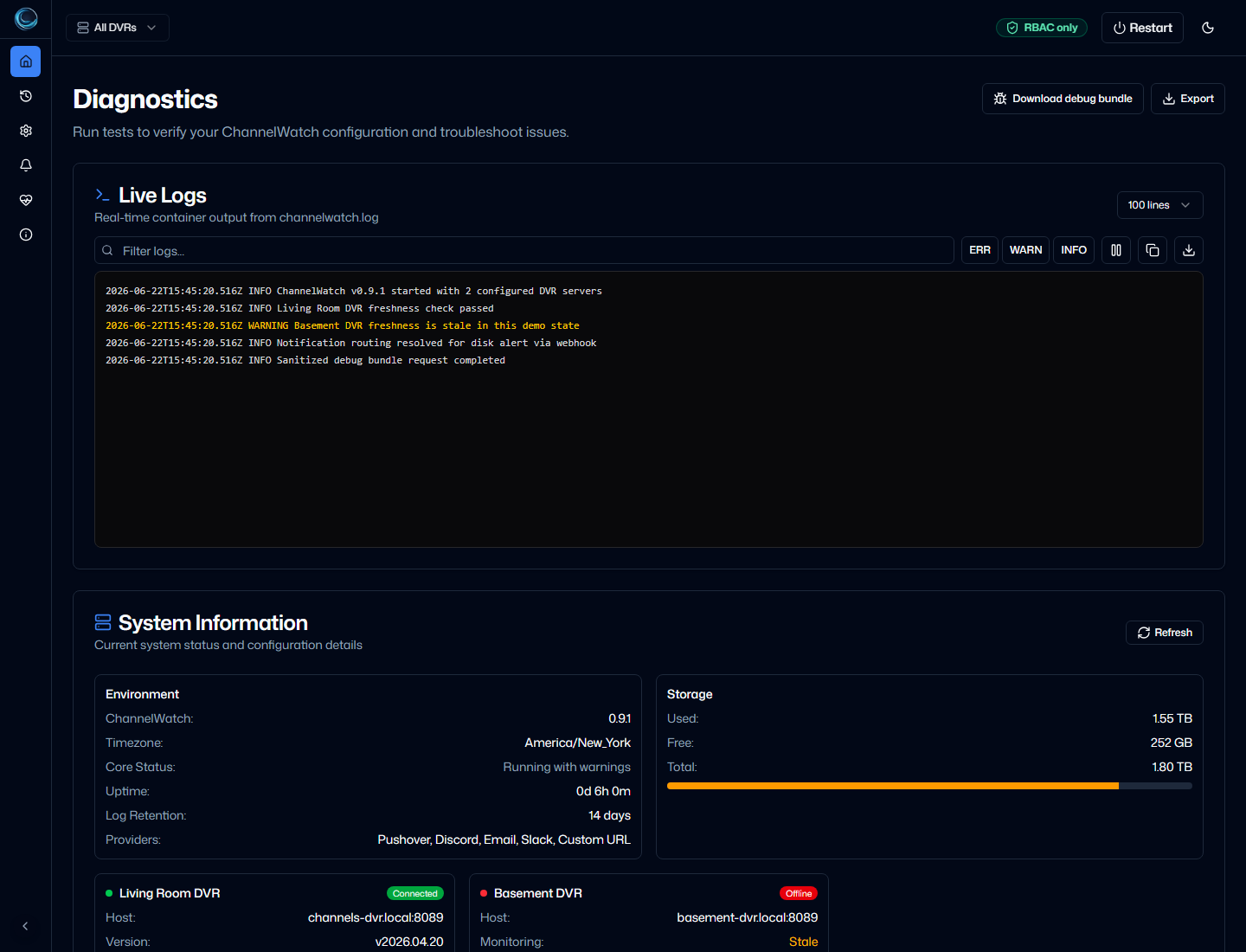
System Status
Section titled “System Status”The System Status section gives you an at-a-glance view of service health. It shows:
- Whether the ChannelWatch backend is running and responsive
- Whether the connection to your Channels DVR server is active
- Current disk usage on the DVR storage path
- The number of active streams being monitored
A green indicator next to each item means that component is working. A red or yellow indicator means something needs attention. Start here before running individual tests.
When an indicator is red
Section titled “When an indicator is red”Use the indicator as your starting point, then confirm it with the matching test:
| Indicator | What to do next |
|---|---|
| DVR connection | Run Connection Tests first. If the test fails, re-check the DVR host, port, and firewall path. |
| Disk usage | Review Settings > Alerts > Disk Space and confirm the DVR storage path is still mounted and reachable. |
| Active streams | Run API Tests and, if needed, compare with docker logs -f channelwatch to see whether DVR events are still arriving. |
| Backend health | Check container logs immediately. If the backend is not healthy, the other tests may fail as a side effect. |
Connection Tests
Section titled “Connection Tests”Connection Tests verify that ChannelWatch can reach your Channels DVR server over the network.
Click Run Connection Test. ChannelWatch attempts to connect to the DVR host and port you configured in Settings. The result shows:
- Whether the TCP connection succeeded
- The HTTP response code from the DVR API
- The round-trip latency
A successful test returns HTTP 200 and a latency in milliseconds. A failed test returns a connection error or timeout, which usually means the DVR host or port is wrong, or a firewall is blocking the connection.
API Tests
Section titled “API Tests”API Tests check that specific Channels DVR API endpoints are responding correctly. ChannelWatch relies on several endpoints to fetch channel information, program metadata, and recording status.
Click Run API Tests. Each endpoint is tested individually and the result shows the HTTP status code and whether the response contained the expected data structure. A failed API test usually means the DVR server is running but a specific feature (like guide data or recording management) is not available or is returning an unexpected format.
If all Connection Tests pass but some API Tests fail, the DVR server is reachable but may be running an older version that doesn’t support a particular endpoint. Check the Channels DVR release notes for the minimum supported version.
When an API test fails
Section titled “When an API test fails”Don’t keep moving to provider tests until the failing endpoint is explained. A failed API test usually means one of three things: the DVR version is too old for that endpoint, the DVR is returning incomplete data, or the upstream DVR feature behind that endpoint is unavailable.
Check the Channels DVR version in the DVR web interface, compare it against the minimum supported version in the install docs, then re-run the API Tests. If the same endpoint keeps failing while the Connection Test stays green, capture the failing endpoint name and the matching log lines before opening a support request.
Alert Tests
Section titled “Alert Tests”Alert Tests let you send a test notification for each alert type without waiting for a real event to occur. This is the fastest way to confirm that your notification provider is configured correctly.
Sending a test alert
Section titled “Sending a test alert”- In the Diagnostics tab, find the Alert Tests section.
- Choose an alert type from the list: Channel Watching, VOD Watching, Recording Events, or Disk Space.
- Click Send Test.
ChannelWatch sends a simulated notification to your configured provider. The notification arrives within a few seconds if the provider is working correctly.
Test notifications are clearly labeled so you can distinguish them from real alerts:
- [TEST] Low Disk Space WarningFree Space: 200.59 GB / 1.82 TB (10.8%)Used Space: 1.62 TBDVR Path: /shares/DVRThe [TEST] label appears in the notification title for all alert types.
Interpreting test results
Section titled “Interpreting test results”Test succeeded, notification arrived: Your provider is configured correctly. If you’re not receiving real alerts, the issue is with alert configuration or DVR connectivity, not the provider.
Test succeeded in the UI but no notification arrived: The provider accepted the request but delivery failed silently. Check the provider’s own dashboard for delivery logs. For Pushover, check the message history at pushover.net. For Discord, check the webhook’s channel for any error messages.
Test failed with an authentication error: Your provider credentials are incorrect. Re-enter them in Settings > Notifications and try again.
Test failed with a network error: ChannelWatch cannot reach the provider’s API. Check that the container has outbound internet access. If you’re running on a network with strict egress rules, the provider’s API endpoint may be blocked.
If a test fails, stop at that layer and fix it before moving on. For example, don’t troubleshoot missing real alerts until Connection Tests, API Tests, and at least one Alert Test all pass.
Disk alert test destination
Section titled “Disk alert test destination”Disk Space alerts support an optional separate test destination. If you configure one in Settings > Advanced > Disk Alert Controls, test sends go to that destination instead of your normal notification route. This lets you test disk alerts without sending them to your main notification channel.
If no override is configured, test alerts use the normal route.
Finding logs
Section titled “Finding logs”Container logs are the most detailed source of information about what ChannelWatch is doing. To view them:
docker logs channelwatchTo follow logs in real time:
docker logs -f channelwatchLog levels
Section titled “Log levels”ChannelWatch supports two log levels, configurable in Settings > General > Log Level:
- Standard - logs significant events: startup, DVR connections, alerts sent, errors.
- Verbose - logs everything, including every event received from the DVR event stream. Use this when you need to confirm that ChannelWatch is receiving events but not sending notifications.
Switch to Verbose temporarily when troubleshooting, then switch back to Standard to keep logs manageable. On a busy DVR, Verbose mode can grow quickly.
Report a Problem
Section titled “Report a Problem”When a problem needs support, click Report a Problem from Diagnostics. The flow collects the issue summary, expected behavior, safe contact handles, current diagnostics, optional screenshots, and one ChannelWatch debug bundle ZIP.
The public issue preview does not include private email addresses, screenshots, debug bundle contents, raw logs, API keys, webhook secrets, notification credentials, DVR API keys, or private config values. If direct submit is unavailable, ChannelWatch can create a support code or offline package for the hosted upload portal.
Read the full support-report guide at Report a Problem.
Log retention
Section titled “Log retention”ChannelWatch automatically cleans up old log files based on the Log Retention setting in Settings > General. The default is 7 days. If you need to preserve logs for longer, increase this value before the retention period expires.
Command-line diagnostics
Section titled “Command-line diagnostics”The Diagnostics tab covers most troubleshooting scenarios. For headless environments or automation, the same tests are available as command-line flags. See CLI Commands for the full reference.
Related pages
Section titled “Related pages”- Common Issues - step-by-step fixes for no notifications, startup failures, and disk alert spam
- Report a Problem - create a sanitized support report from the app
- CLI Commands - command-line alternatives for the same diagnostic tests
- Disk Space - disk alert thresholds, cooldown logic, and test destination configuration