
Backup & Restore
ChannelWatch includes a one-button backup and restore system in the web UI. A backup zip captures everything needed to move your installation to a new machine or recover from a corrupted database.
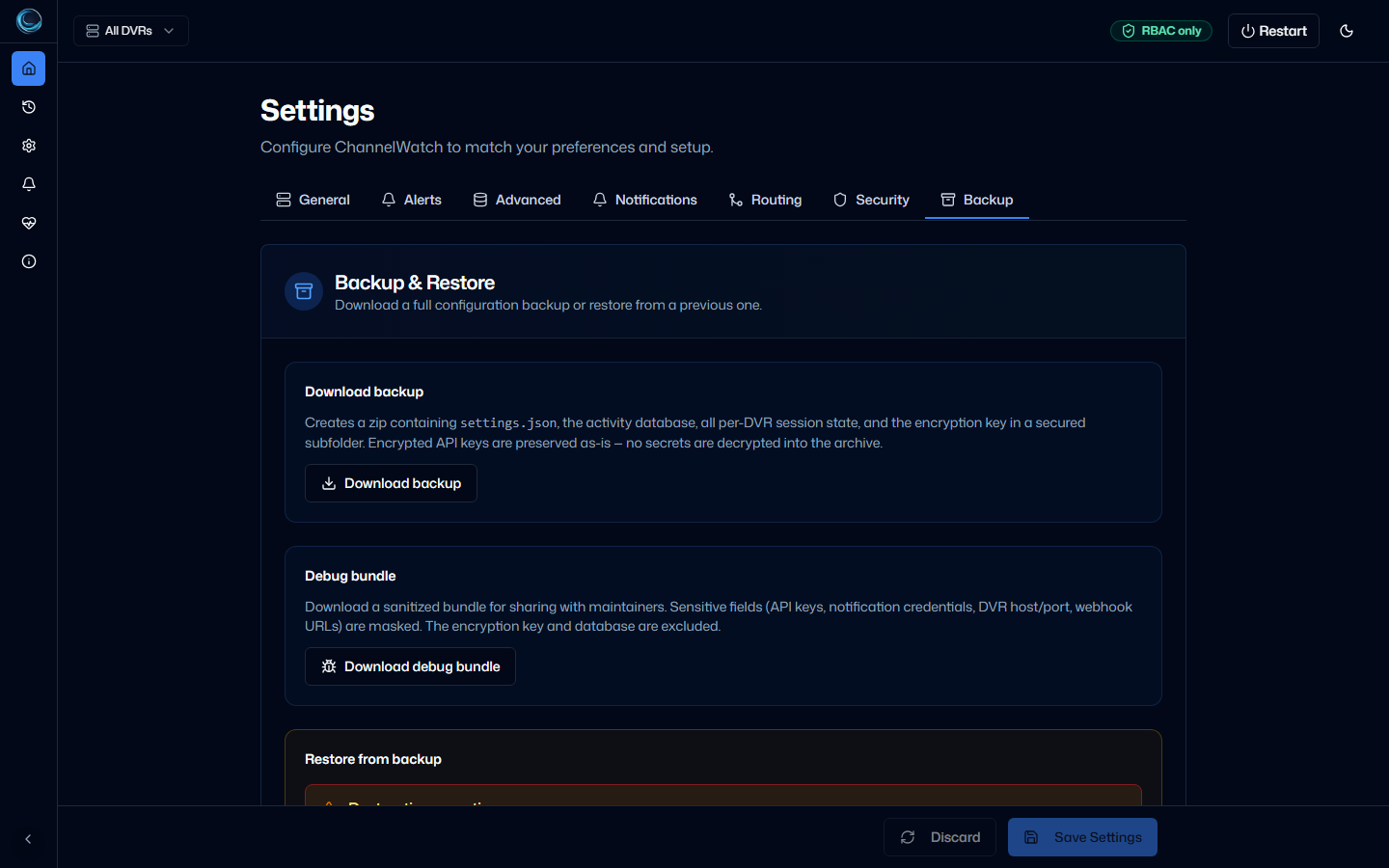
What’s in a backup
Section titled “What’s in a backup”A backup zip contains:
| File | Contents |
|---|---|
settings.json |
All configuration: DVR servers, notification providers, alert thresholds, and the saved secret values needed to restore those settings. Secret values are included in masked form for UI-safe inspection and in encrypted form where applicable. |
channelwatch.db |
The SQLite database: alert history, notification delivery log, session state, user accounts (if RBAC is enabled). |
session_state_<id>.json |
Per-DVR session state files. One file per configured DVR. |
sensitive_keys/encryption.key |
Included when protected credentials are present. The file is stored in a dedicated sensitive subfolder with a warning manifest and must be treated as sensitive. |
Normal app backup zips do not include downloaded Update Center app bundles under /config/channelwatch-runtime/releases/. Use a manual /config archive if you need to preserve downloaded bundle rollback state as well as settings and history.
Downloading a backup
Section titled “Downloading a backup”- Open the ChannelWatch web UI at
http://your-server-ip:8501. - Go to Settings > Backup & Restore.
- Click Download backup.
The browser downloads a zip file named channelwatch-backup-{timestamp}.zip. The download streams directly from the container; no temporary file is written to the host.
Restoring from a backup
Section titled “Restoring from a backup”Before writing any files, ChannelWatch automatically snapshots your current state to /config/backups/pre-restore.{timestamp}.zip. If the restore goes wrong, you can recover from that snapshot.
The Update Center also creates a pre-update backup before applying a compatible app bundle. Those backups are stored under /config/backups/ and are separate from the active app-bundle rollback pointer.
Before you restore
Section titled “Before you restore”Before you start, confirm you have the correct backup zip for this installation and keep a copy outside the current host before you upload it. If you can still open the archive on another machine, inspect settings.json there first to confirm it is valid JSON and that the timestamp matches the backup you intend to restore.
Running the restore
Section titled “Running the restore”To restore:
- Go to Settings > Backup & Restore.
- Click Restore from backup and select your backup zip.
- ChannelWatch validates the zip integrity and schema version.
- If validation passes, it writes the files to
/config/and triggers a hot reload.
The web UI will briefly disconnect during the hot reload and reconnect automatically within a few seconds.
Schema version compatibility
Section titled “Schema version compatibility”ChannelWatch will not restore a backup whose schema version is ahead of the current application version. If you see a “schema version mismatch” error, you need to upgrade ChannelWatch first, then retry the restore.
Restoring a backup from an older version is supported. The migration runs automatically during the restore.
Verifying the restore
Section titled “Verifying the restore”After the hot reload completes, verify the restore before you consider the system recovered:
- Open Diagnostics and confirm System Status shows the backend as healthy.
- Run Connection Tests to confirm the DVR host, port, and network path still work.
- Send at least one Alert Test to confirm provider settings survived the restore.
- Check the routes and settings you care about most, especially DVR entries, alert toggles, and disk-space thresholds.
If any of those checks fail, stop there and recover from the pre-restore snapshot at /config/backups/pre-restore.{timestamp}.zip instead of layering more manual fixes on top.
Automatic backups before migrations
Section titled “Automatic backups before migrations”ChannelWatch creates automatic backups before any schema migration. These are stored in /config/backups/ with names like settings.v6.{timestamp}.json. They are retained for 30 days and then pruned automatically.
If a migration fails partway through, you can recover by restoring the pre-migration backup from /config/backups/.
Backup rotation schedule
Section titled “Backup rotation schedule”ChannelWatch creates safety snapshots before migrations, but it does not schedule your regular backup routine for you. For active installations, a weekly manual backup is a good default.
Also take a fresh backup before any upgrade, before major settings changes, and before moving the container or /config volume to new storage. Keep more than one generation so a bad backup does not replace your only good restore point.
Offsite and redundant storage
Section titled “Offsite and redundant storage”Do not keep the only backup copy on the same machine and disk that hold your DVR recordings. Store at least one copy somewhere else, such as a NAS, cloud storage account, or separate external drive.
Because the zip is portable, you don’t need special tooling to store it offsite, but you do need to protect it like any other sensitive config archive. A simple pattern is local copy plus one offsite copy plus one older known-good copy in rotation.
Moving to a new machine
Section titled “Moving to a new machine”A backup zip is fully portable. To move ChannelWatch to a new machine:
- Download a backup from the old machine.
- Set up ChannelWatch on the new machine with a fresh
/configvolume. - Complete the first-run wizard (or skip it if you’re restoring immediately).
- Go to Settings > Backup & Restore and restore the backup zip.
After the restore, ChannelWatch will have all your DVR servers, notification providers, and alert history from the old machine.
Manual recovery (advanced)
Section titled “Manual recovery (advanced)”If the web UI is unavailable and you need to restore manually:
- Stop the container:
docker compose down - Extract the backup zip to a temporary directory.
- Inspect
settings.jsonto confirm it is valid JSON before copying it into place. - Copy
settings.jsonandchannelwatch.dbto your/configvolume path on the host. - If the backup contains
sensitive_keys/encryption.key, copy it to/config/encryption.key. - If you restored an encryption key file, set permissions:
chmod 600 /your/config/path/encryption.key - Start the container:
docker compose up -d
ChannelWatch will detect the restored files on startup and run any necessary migrations. After startup, use the Diagnostics tab to run Connection Tests and a test alert before you return the system to normal use.
Related pages
Section titled “Related pages”- Diagnostics - verify backend health, DVR connectivity, and test alerts after a restore
- Privacy - what data ChannelWatch stores and where
- Common Issues - fixes for startup failures and other problems