
DVR Connection
ChannelWatch connects to one or more Channels DVR servers over HTTP to monitor the event stream. Connections are managed through the web UI - no environment variables are required for a standard setup.
Adding your first DVR server
Section titled “Adding your first DVR server”On first launch, ChannelWatch opens a setup wizard at http://your-server-ip:8501. The wizard prompts you for:
- Server name - a friendly label (e.g.
Living Room DVR,Basement Server) - Host - the IP address or hostname of the machine running Channels DVR
- Port - the Channels DVR API port (default:
8089)
After saving, ChannelWatch tests the connection and begins monitoring the event stream. You can add more servers at any time from Settings > General > DVR Servers.
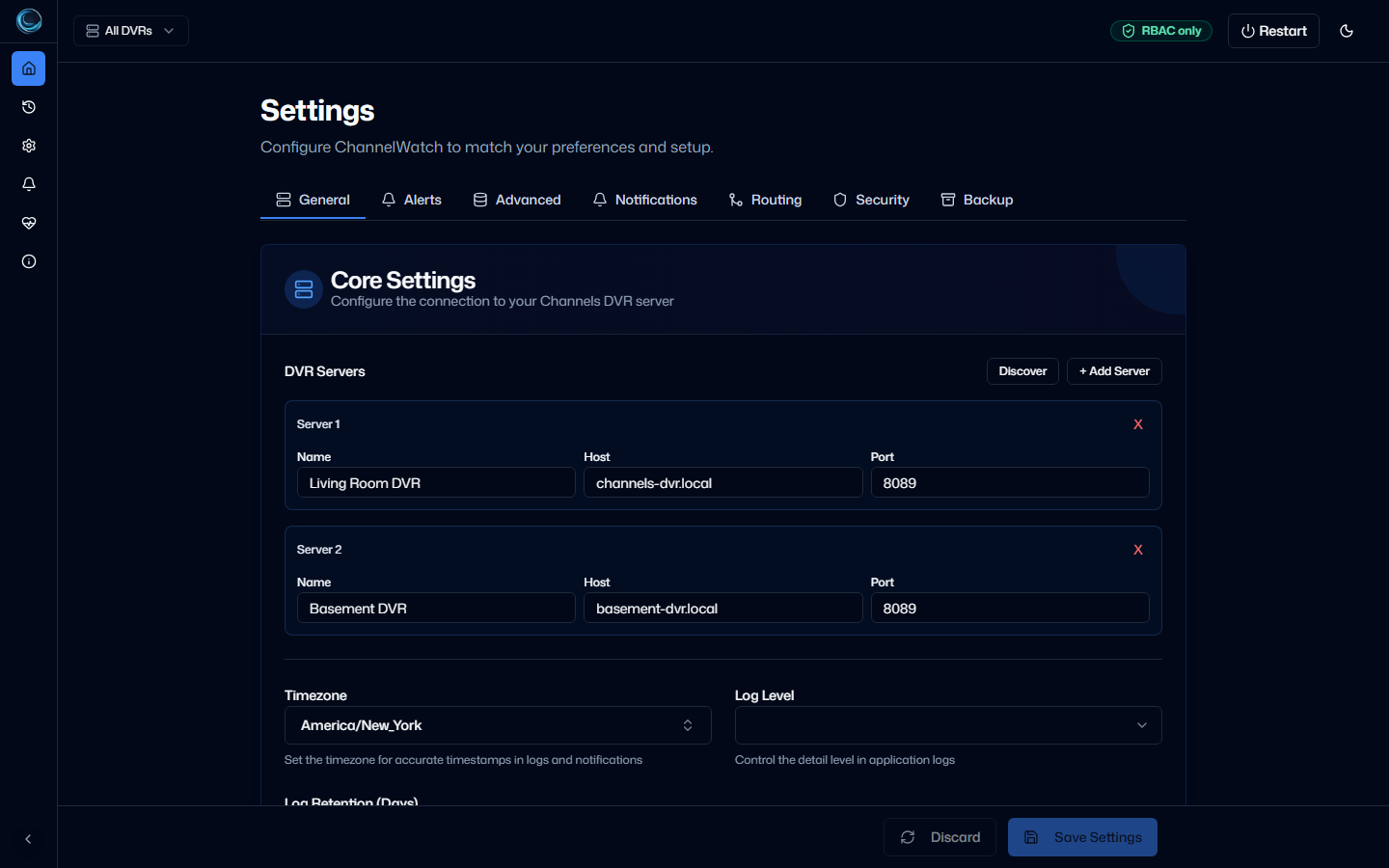
DVR server fields
Section titled “DVR server fields”| Field | Default | Description |
|---|---|---|
| Name | (host address) | Friendly label shown in notifications and the dashboard |
| Host | - | IP address or hostname of the Channels DVR server |
| Port | 8089 |
Channels DVR API port |
| Enabled | Yes | Toggle to pause monitoring for this server without removing it |
Network mode and reachability
Section titled “Network mode and reachability”ChannelWatch must be able to reach the Channels DVR API over HTTP. The right network configuration depends on how you deployed ChannelWatch.
Host networking (default)
Section titled “Host networking (default)”With network_mode: host in your compose file, ChannelWatch shares the host’s network stack. You can use localhost, 127.0.0.1, or any LAN IP to reach Channels DVR - whichever address the DVR server is listening on.
This is the simplest option for most home lab setups where ChannelWatch and Channels DVR run on the same machine or the same LAN.
Bridge networking
Section titled “Bridge networking”With bridge networking and explicit port mapping, ChannelWatch runs in an isolated network namespace. You cannot use localhost to reach a DVR server on the Docker host.
Use the LAN IP address of the machine running Channels DVR instead. If both services run on the same Docker host, add the host.docker.internal alias:
services: channelwatch: # ... ports: - "8501:8501" extra_hosts: - "host.docker.internal:host-gateway"Then enter host.docker.internal as the DVR host in the web UI.
Firewall considerations
Section titled “Firewall considerations”ChannelWatch makes outbound HTTP requests to the Channels DVR API. No inbound connections from Channels DVR to ChannelWatch are required.
Make sure the following is allowed:
- Outbound TCP from the ChannelWatch container to
<dvr-host>:8089(or your custom port) - No special firewall rules are needed on the Channels DVR side - the API is already open for the Channels DVR app itself
If you run a host-level firewall (e.g. ufw, firewalld), verify that Docker’s bridge interface is not blocked from reaching the DVR host’s port.
Multi-DVR setup
Section titled “Multi-DVR setup”ChannelWatch v1.5.3 supports monitoring multiple Channels DVR servers from a single instance. Add additional servers from Settings > General > DVR Servers > Add Server.
Each server gets its own connection entry with an independent enabled/disabled toggle. Notifications include the server name so you always know which DVR triggered an alert.
For a full walkthrough of multi-DVR configuration, per-DVR notification routing, and mDNS auto-discovery, see Multi-DVR Overview.
Environment variable (automation)
Section titled “Environment variable (automation)”For headless or automated deployments, you can pre-configure DVR servers via the CHANNELS_DVR_SERVERS environment variable:
environment: CHANNELS_DVR_SERVERS: "Living Room@192.168.1.10:8089,Basement@192.168.1.20:8089"The format is Name@host:port with multiple servers separated by commas. ChannelWatch parses those entries first, then keeps any web-UI servers whose host and port do not appear in the env var list. For most deployments, the web UI is still the simpler and preferred path.
For broader automation patterns, see Environment Bootstrap Config.
Soft-deleting a DVR server
Section titled “Soft-deleting a DVR server”Removing a DVR server from the web UI performs a soft delete - the server record is retained internally for 30 days before permanent removal. This preserves historical activity data and allows recovery if you remove a server by mistake.
During the soft-delete window, the server does not appear in the UI and ChannelWatch does not attempt to connect to it.
Common connection errors
Section titled “Common connection errors”“Connection refused” or “Connection timed out”
Section titled ““Connection refused” or “Connection timed out””ChannelWatch cannot reach the DVR API. Check:
- The host and port are correct in Settings > General > DVR Servers
- Channels DVR is running (
docker logs channels-dvror check the Channels DVR app) - No firewall is blocking the port
- If using bridge networking, you’re not using
localhostas the host
“Connection test failed” in the Diagnostics tab
Section titled ““Connection test failed” in the Diagnostics tab”Run a connection test from Diagnostics > Connection Tests. The test output shows the exact URL being attempted and the HTTP response code. A 404 usually means the host and port are correct but the API path is wrong - confirm you’re pointing at the Channels DVR server, not a different service on that port.
Notifications stop arriving after a DVR restart
Section titled “Notifications stop arriving after a DVR restart”ChannelWatch automatically reconnects to the event stream after a DVR restart. If notifications don’t resume within a minute or two, check the logs (docker logs -f channelwatch) for reconnection attempts. A persistent failure usually means the DVR’s IP address changed - update the host in Settings > General > DVR Servers.
Next steps
Section titled “Next steps”- Core Settings - timezone, log level, and alert toggles
- Hot Reload - apply configuration changes without restarting
- Multi-DVR Overview - monitor multiple Channels DVR servers