
Secure Login and Roles
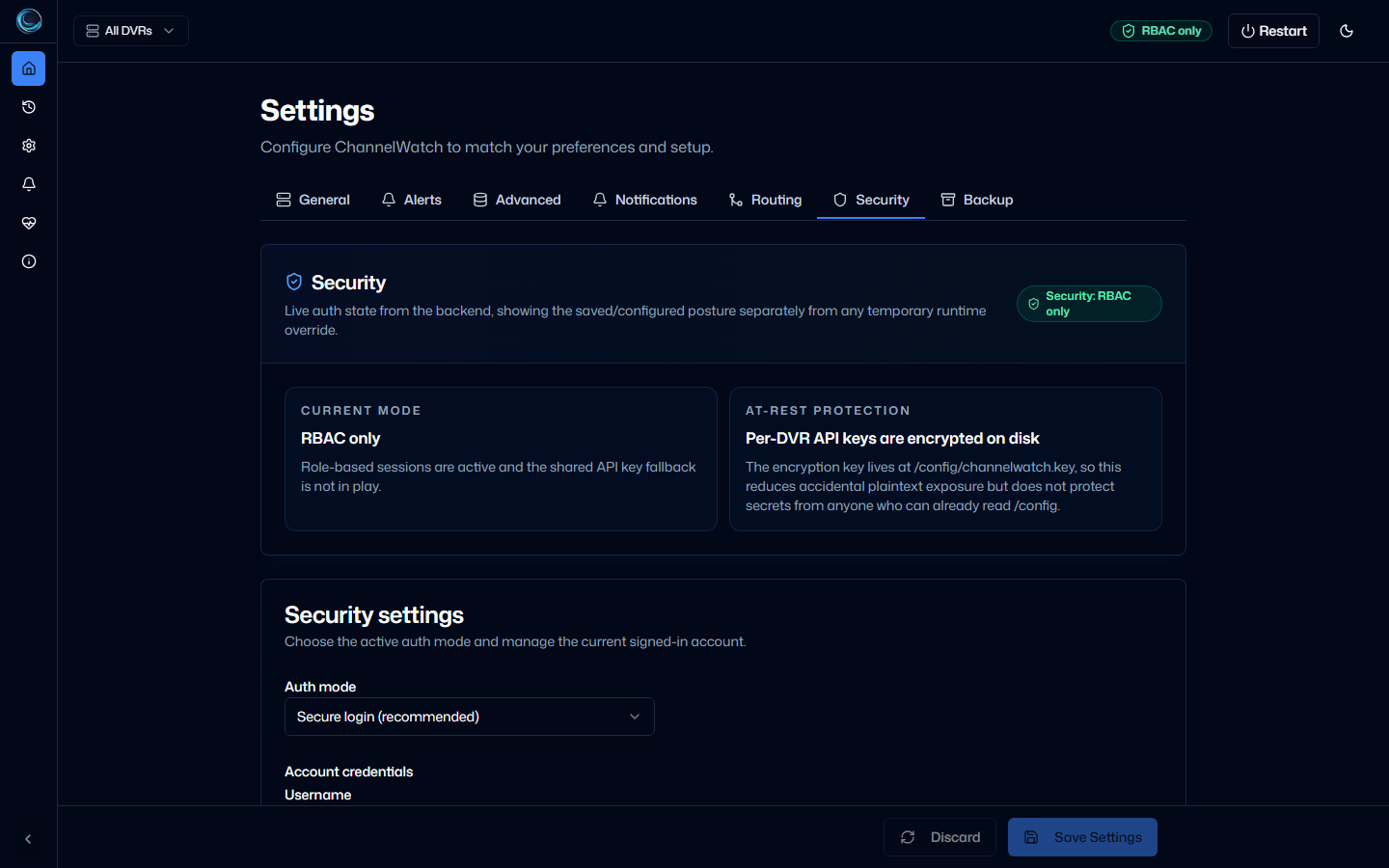
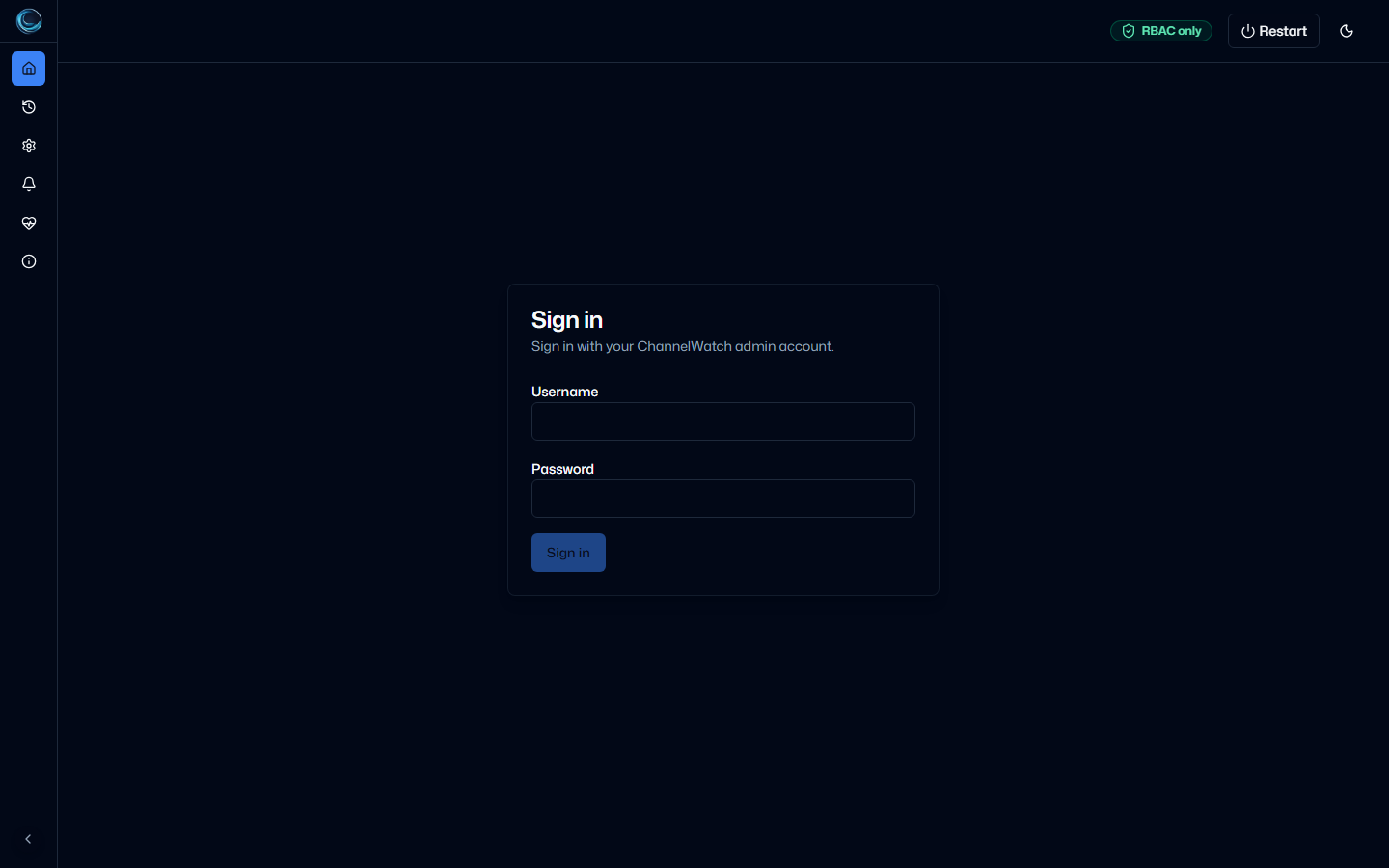
Secure login is the normal protected setup choice in ChannelWatch v1.5.3. It creates a local administrator account, uses browser sessions, and applies role checks to protected routes. Fresh setup also offers trusted-network no-auth for isolated networks where every client is trusted.
Role model
Section titled “Role model”The backend defines three roles:
| Role | Access boundary |
|---|---|
| Admin | Full access to protected settings and administrative actions |
| Operator | Operational changes allowed by routes that require operator or higher |
| Viewer | Read access on routes that permit viewer sessions |
Role enforcement is live in v1.5.3. General multi-user administration is not: the shipped UI and API do not provide supported actions to add users, change another user’s role, disable users, or delete users. The current UI creates the first administrator and lets a signed-in user change their own credentials.
First-run setup
Section titled “First-run setup”On a fresh install:
- Choose Secure login.
- Enter the first administrator username and password.
- Continue to DVR setup.
The setup flow uses these auth endpoints:
GET /api/v1/auth/setup-statusPOST /api/v1/auth/setupChoosing secure login persists rbac mode and removes the shared API key. The resulting security mode is RBAC_ONLY.
Environment first-admin bootstrap
Section titled “Environment first-admin bootstrap”CW_ADMIN_USER and CW_ADMIN_PASS can create the initial administrator only when no users exist:
environment: CW_ADMIN_USER: "admin" CW_ADMIN_PASS: "<strong-admin-password>"These variables create an account but do not select the app’s authentication mode. Fresh interactive setup should still choose Secure login. The environment path is mainly useful when saved settings already enable RBAC and the user table is empty. Remove the variables after the first account is created. They do not reset an existing administrator.
Lockout recovery
Section titled “Lockout recovery”Reset an existing administrator password with the shipped doctor command:
docker exec -it channelwatch channelwatch doctor reset-admin-password --username adminThe interactive command prompts for the new password without putting it in shell history. CW_ADMIN_USER and CW_ADMIN_PASS are not an existing-account recovery path because bootstrap runs only when the user table is empty.
Session security
Section titled “Session security”Secure login uses a channelwatch_session cookie and requires an X-CSRF-Token header for mutating session-authenticated requests. The cookie is HttpOnly, uses SameSite=Strict, and expires after 86400 seconds. ChannelWatch adds Secure on HTTPS requests, including trusted reverse-proxy HTTPS when the direct proxy address is listed in CW_TRUSTED_PROXIES.
The current auth routes are:
POST /api/v1/auth/loginPOST /api/v1/auth/logoutGET /api/v1/auth/whoamiPOST /api/v1/auth/change-credentialsGET /api/v1/auth/setup-statusPOST /api/v1/auth/setupLegacy API-key fallback
Section titled “Legacy API-key fallback”Upgraded installations can report RBAC_WITH_API_KEY_FALLBACK when secure sessions are active and a legacy shared API key still exists. That key has full access and bypasses role checks. RBAC_ONLY confirms that the bypass is gone.
ChannelWatch v1.5.3 does not ship service-account management or token creation for named users. Do not remove a legacy API-key path that an integration still requires until that integration has a tested session-auth alternative.
Related pages
Section titled “Related pages”- Security Modes - all four reported modes and the security badge
- DVR API Keys - Channels DVR credential storage
- CSP, CSRF, Cookies - browser request protections