
Core Settings
Core settings control the fundamental behavior of ChannelWatch: how it timestamps events, how much it logs, and which alert types are active. All of these are configured through the web UI at http://your-server-ip:8501 under Settings and stored in /config/settings.json inside the container.
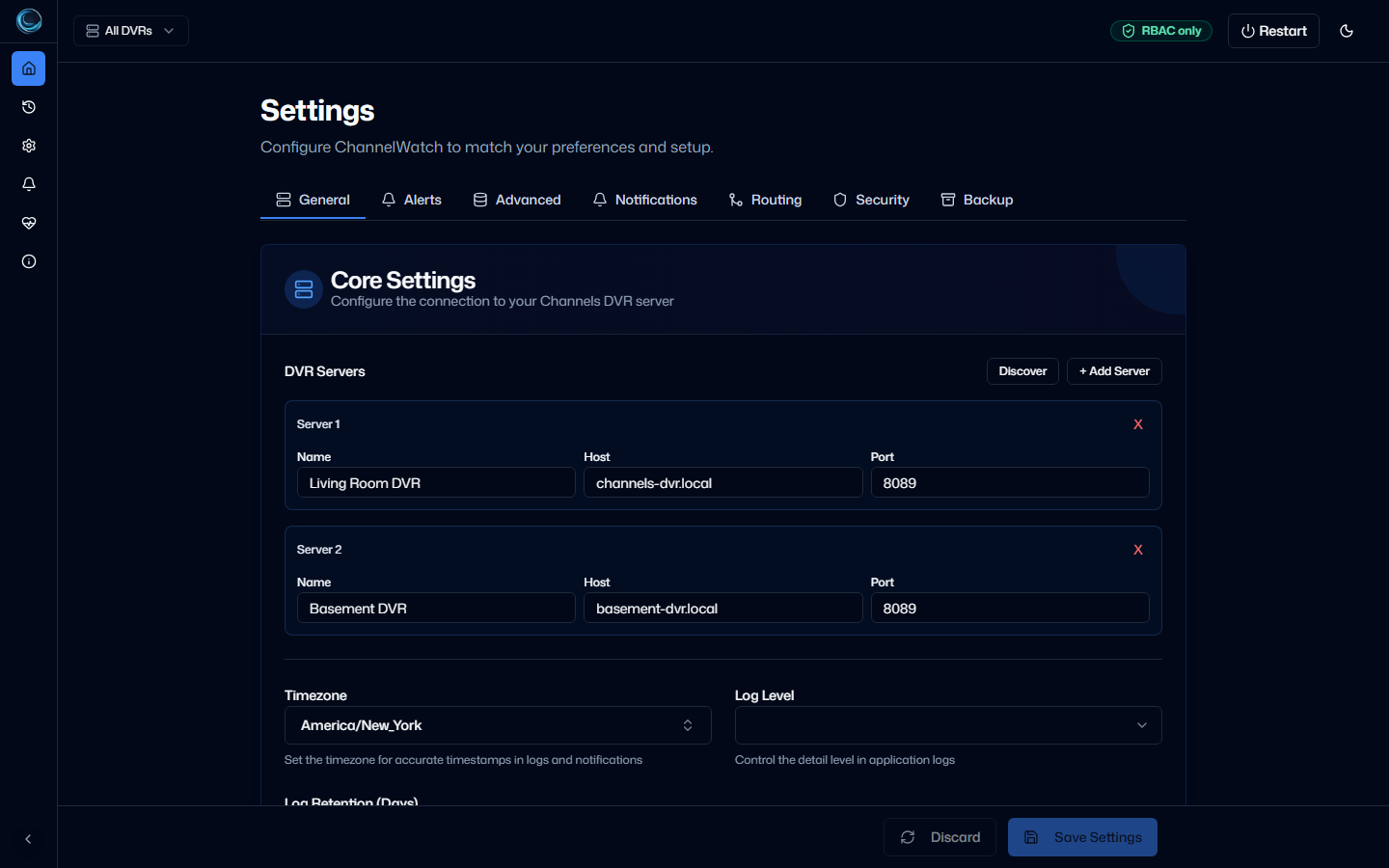
Settings reference
Section titled “Settings reference”ChannelWatch saves these values in /config/settings.json inside the container’s config directory.
| Setting | Default | Description |
|---|---|---|
| Timezone | America/Los_Angeles |
IANA timezone used for all timestamps in notifications and logs |
| Log Level | Standard | Controls log verbosity: Standard (level 1) or Verbose (level 2) |
| Log Retention | 7 days | How long log files are kept before automatic cleanup |
| Channel Watching | Disabled | Live TV viewing notifications |
| VOD Watching | Disabled | Recorded content and library playback alerts |
| Recording Events | Enabled | Lifecycle and outcome alerts for scheduled, started, completed, cancelled, stopped, failed, skipped, missed, and interrupted recordings |
| Disk Space | Enabled | Storage threshold alerts at warning and critical levels |
| Stream Counting | Enabled | Adds total active stream count to Channel Watching notifications |
These are fresh-install defaults from the Important Only preset. Existing installs keep their saved alert choices during an upgrade.
Timezone
Section titled “Timezone”ChannelWatch uses the timezone you set here for all notification timestamps and log entries. The value must be a valid IANA timezone name - for example America/New_York, Europe/London, or Asia/Tokyo.
You can also set the timezone via the TZ environment variable in your compose file, which overrides the web UI value:
environment: TZ: "America/New_York"For environment-variable-driven setup patterns, see DVR Connection and Environment Bootstrap Config. On this page, TZ is the only env var that directly changes a core setting.
Log level
Section titled “Log level”Two levels are available:
- Standard (default) - logs connection events, alert dispatches, and errors. Suitable for normal operation.
- Verbose - adds detailed event processing, API call traces, and session lifecycle messages. Use this when troubleshooting unexpected behavior.
Verbose mode generates significantly more log output. Switch back to Standard once you’ve diagnosed the issue.
Log retention
Section titled “Log retention”ChannelWatch automatically deletes log files older than the configured retention period. The default is 7 days. Increase this if you want a longer audit trail; decrease it on low-storage systems.
Log files are stored at /config/logs/ inside the container (the directory you mounted as /config).
Alert toggles
Section titled “Alert toggles”Each alert type can be enabled or disabled independently. Disabling an alert type stops ChannelWatch from sending notifications for that category - it does not affect monitoring or logging.
| Alert type | What it covers |
|---|---|
| Channel Watching | Live TV streams on any tuner or client |
| VOD Watching | Playback of recorded content or DVR library items |
| Recording Events | Scheduled, started, completed, cancelled, stopped, failed, skipped, missed, and interrupted recordings |
| Disk Space | Free space on the DVR storage path falling below configured thresholds |
For per-alert configuration options (which fields appear in notifications, cooldown timers, image sources), see the individual alert pages:
Stream counting
Section titled “Stream counting”When enabled, ChannelWatch includes the total number of active streams across all connected DVR servers in Channel Watching notifications. This is a Channel Watching sub-feature, not a standalone alert type. It gives you a quick sense of household activity at a glance.
API key
Section titled “API key”ChannelWatch v1.5.3 exposes a REST API at /api/v1/. A fresh install requires you to choose Secure login or trusted-network no-auth before setup continues. Secure login uses local session authentication. Existing installations may still use the legacy shared X-API-Key path for compatibility.
See Security Modes for app access and DVR API Keys for Channels DVR credential storage.
Next steps
Section titled “Next steps”- DVR Connection - add and manage your Channels DVR servers
- Hot Reload - apply configuration changes without restarting the container