
Connecting to Channels DVR
ChannelWatch connects to your existing Channels DVR server. This page explains the connection details you need, how to verify them, and what to check when the connection fails.
What ChannelWatch needs from Channels DVR
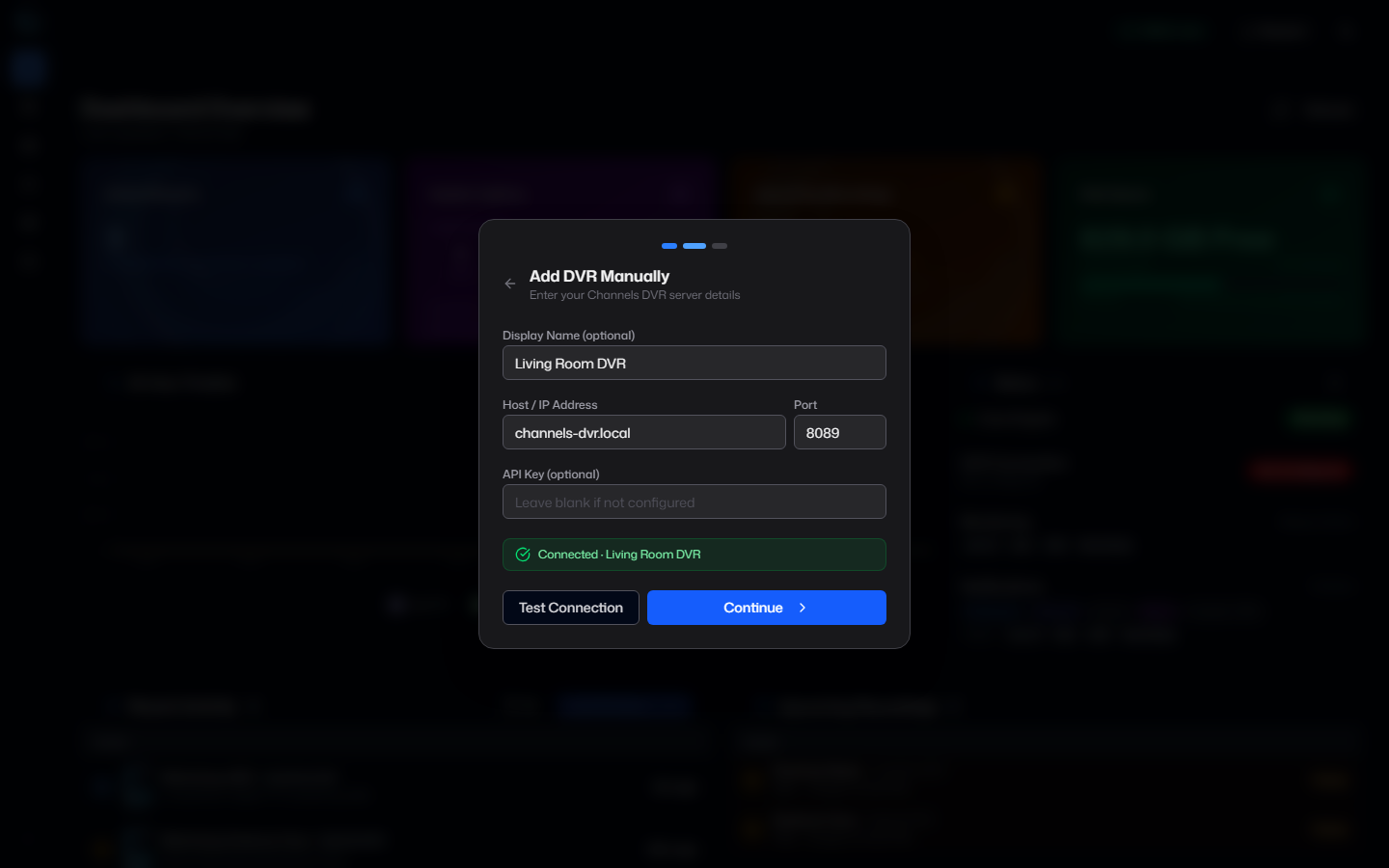
Section titled “What ChannelWatch needs from Channels DVR”ChannelWatch needs a reachable Channels DVR host and port. In most setups, the port is 8089.
If your DVR is available without API authentication, the host and port are enough. If your DVR requires API authentication, add the API key for that DVR in the ChannelWatch web UI.
For the main container setup, start with Install (Docker Compose). After the container is running, use First-Run Configuration to enter the DVR details.
Find your DVR host and port
Section titled “Find your DVR host and port”Use the address that ChannelWatch can actually reach from its own network context:
- Host networking:
localhost, the host IP, or another reachable LAN hostname usually works - Bridge networking: use the DVR machine’s LAN IP or hostname, not
localhostor127.0.0.1
The default Channels DVR API port is usually 8089. If your DVR is on a different port, use that custom value instead.
API authentication, only when required
Section titled “API authentication, only when required”Some Channels DVR setups work without an API key. Others require one. ChannelWatch does not need an API key unless your DVR is already configured to require authenticated API access.
If your DVR requires a key, enter it in the DVR connection form during first-run setup or later in Settings > General > DVR Servers. If your DVR does not require a key, leave that field empty.
Test the connection
Section titled “Test the connection”After saving the DVR entry, test it from the ChannelWatch web UI:
- Open Diagnostics
- Run Connection Tests
- Confirm the DVR reports as reachable
If the test succeeds, ChannelWatch can reach the DVR API and start monitoring events.
Add more than one DVR
Section titled “Add more than one DVR”This page only covers the connection details for a single DVR entry. If you want to monitor multiple DVRs from one ChannelWatch instance, follow Adding DVR Servers instead of duplicating the same setup by hand.
Troubleshooting connection failures
Section titled “Troubleshooting connection failures”Host or port is wrong
Section titled “Host or port is wrong”If the connection test fails immediately, confirm the host and port first. A wrong host, a stale hostname, or a non-default port is the most common cause.
Bridge networking is hiding local discovery
Section titled “Bridge networking is hiding local discovery”If you expected the DVR to appear automatically and it does not, check the Docker network mode. In bridge mode, mDNS discovery returns no results. Switch to host networking or enter the DVR address manually. See Install (Docker Compose) for the networking options.
Firewall or LAN isolation is blocking access
Section titled “Firewall or LAN isolation is blocking access”Make sure the machine running ChannelWatch can reach the DVR host and port across your LAN or VPN. Guest-network isolation, VLAN rules, or host firewalls can block the connection even when the address looks correct.
API key mismatch
Section titled “API key mismatch”If your DVR requires API authentication, a missing or incorrect API key will prevent a successful connection. Re-enter the key in the DVR settings and test again.
If the connection still fails, work through the broader checks in Common Issues.